Desktop sandbox
Run a full Linux GUI desktop (XFCE) inside a Firecracker microVM. Control the desktop programmatically with mouse clicks, keyboard input, and screenshots, for AI computer use, visual testing, and GUI automation. Available in both TypeScript and Python SDKs.
Usage
const sb = await Sandbox.create('desktop');

// Take a screenshot
const png = await sb.desktop.screenshot();

// Click, type, and press keys
await sb.desktop.leftClick(512, 384);
await sb.desktop.type('hello world');
await sb.desktop.press('Return');

// Get screen info
const screen = await sb.desktop.getScreen();
// { width: 1024, height: 768 }
sb = Sandbox.create("desktop")
# Take a screenshot
png = sb.desktop.screenshot()
# Click, type, and press keys
sb.desktop.left_click(512, 384)
sb.desktop.type("hello world")
sb.desktop.press("Return")
# Get screen info
screen = sb.desktop.get_screen()
# ScreenInfo(width=1024, height=768)Examples
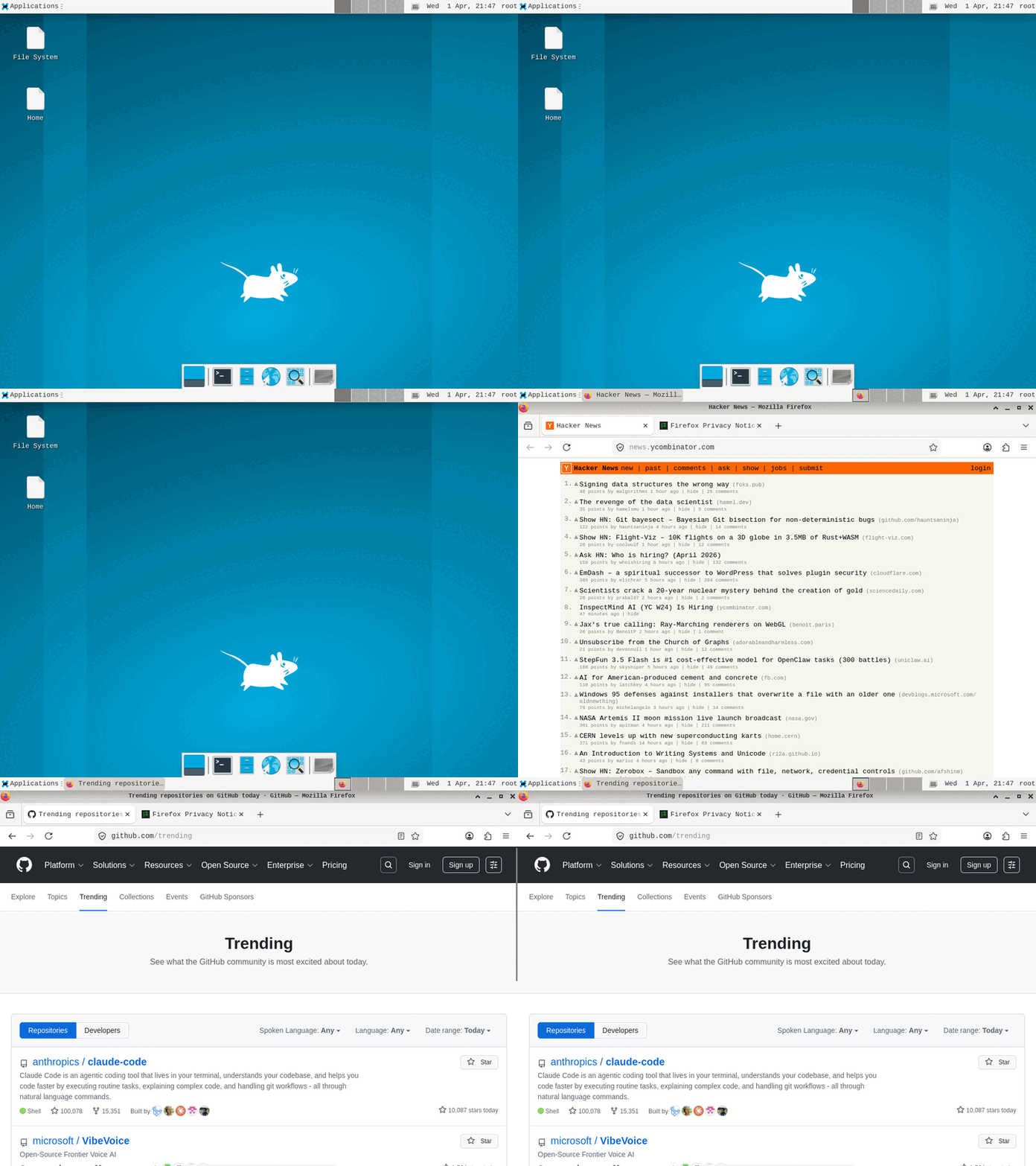
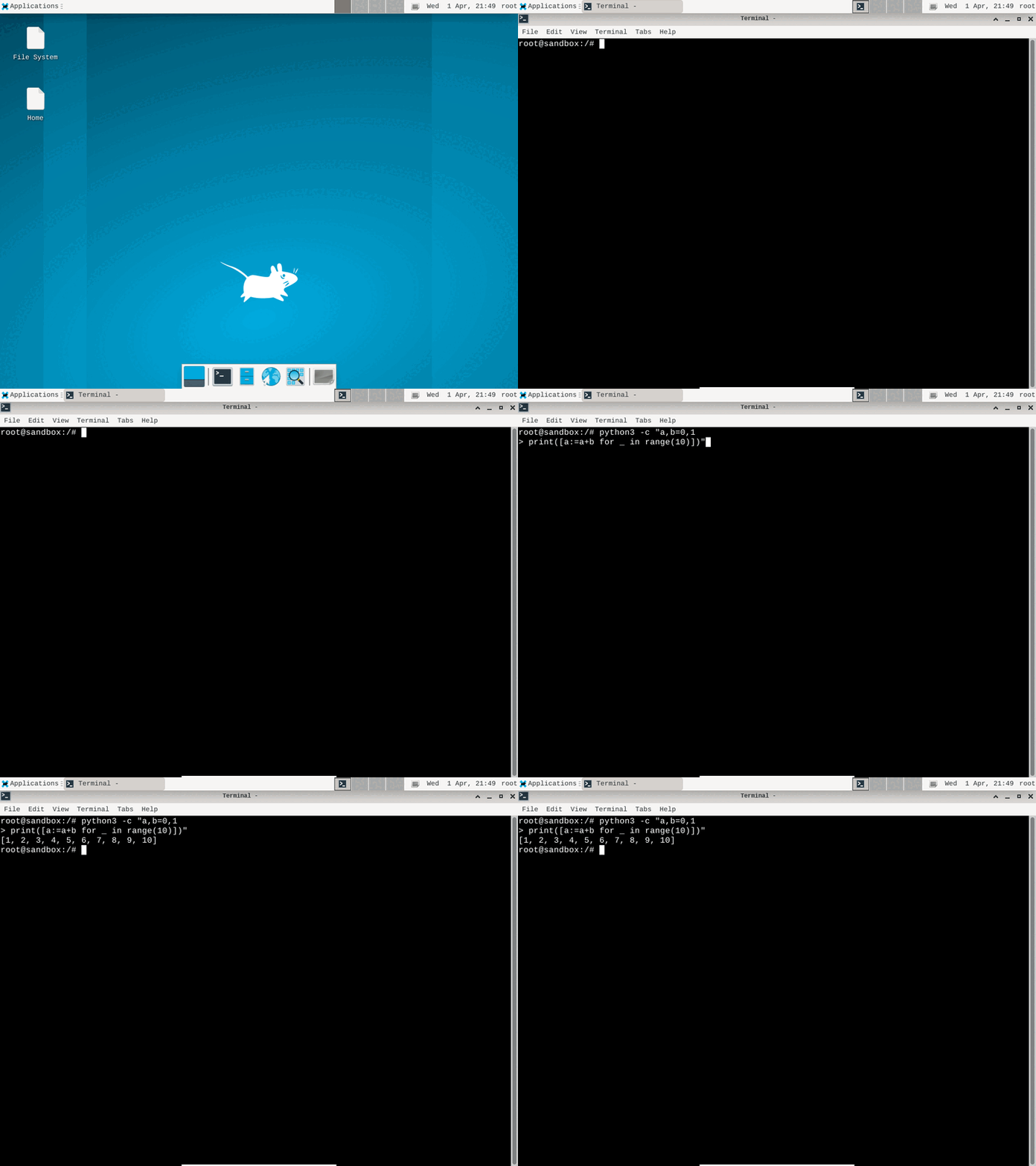
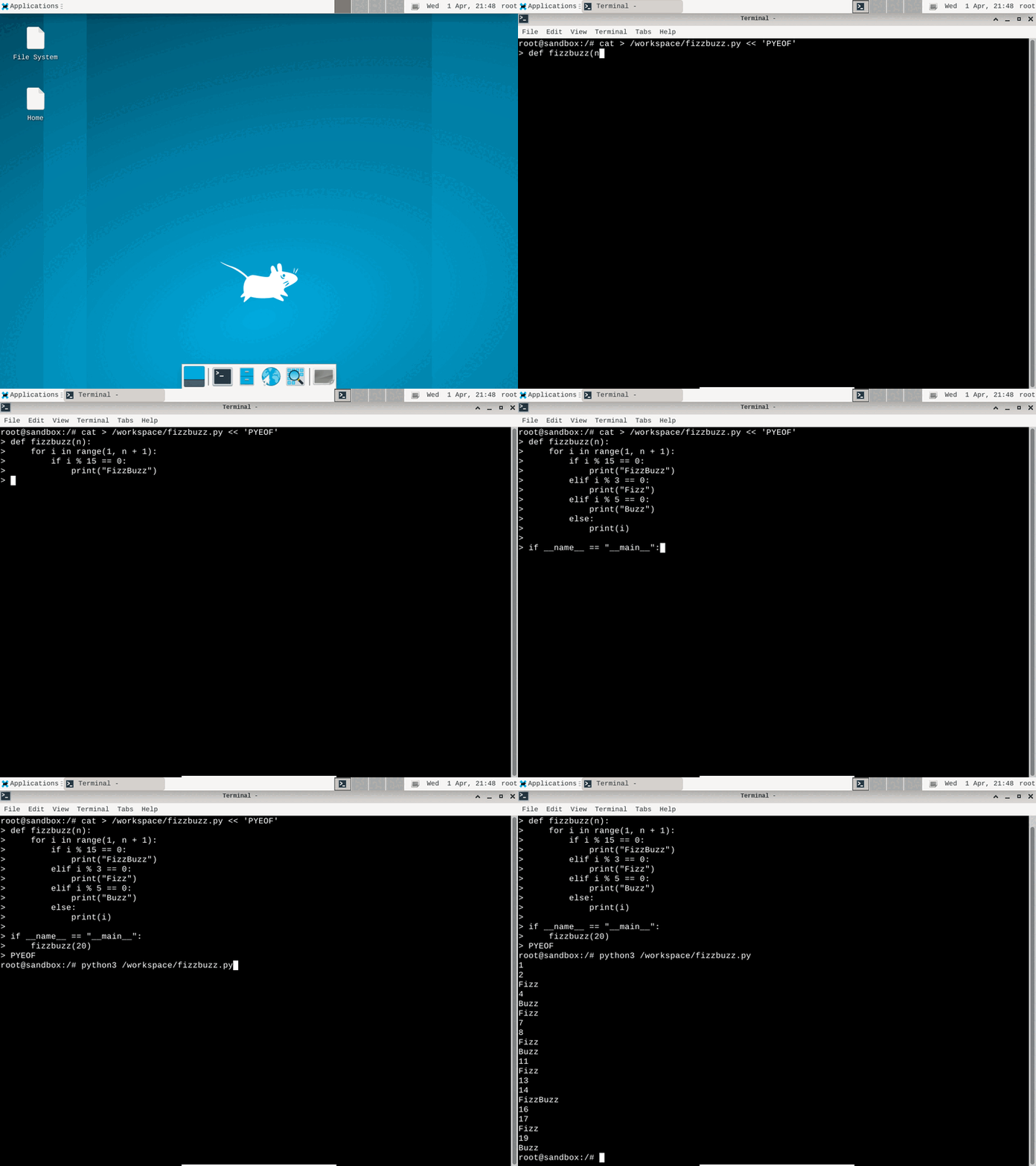
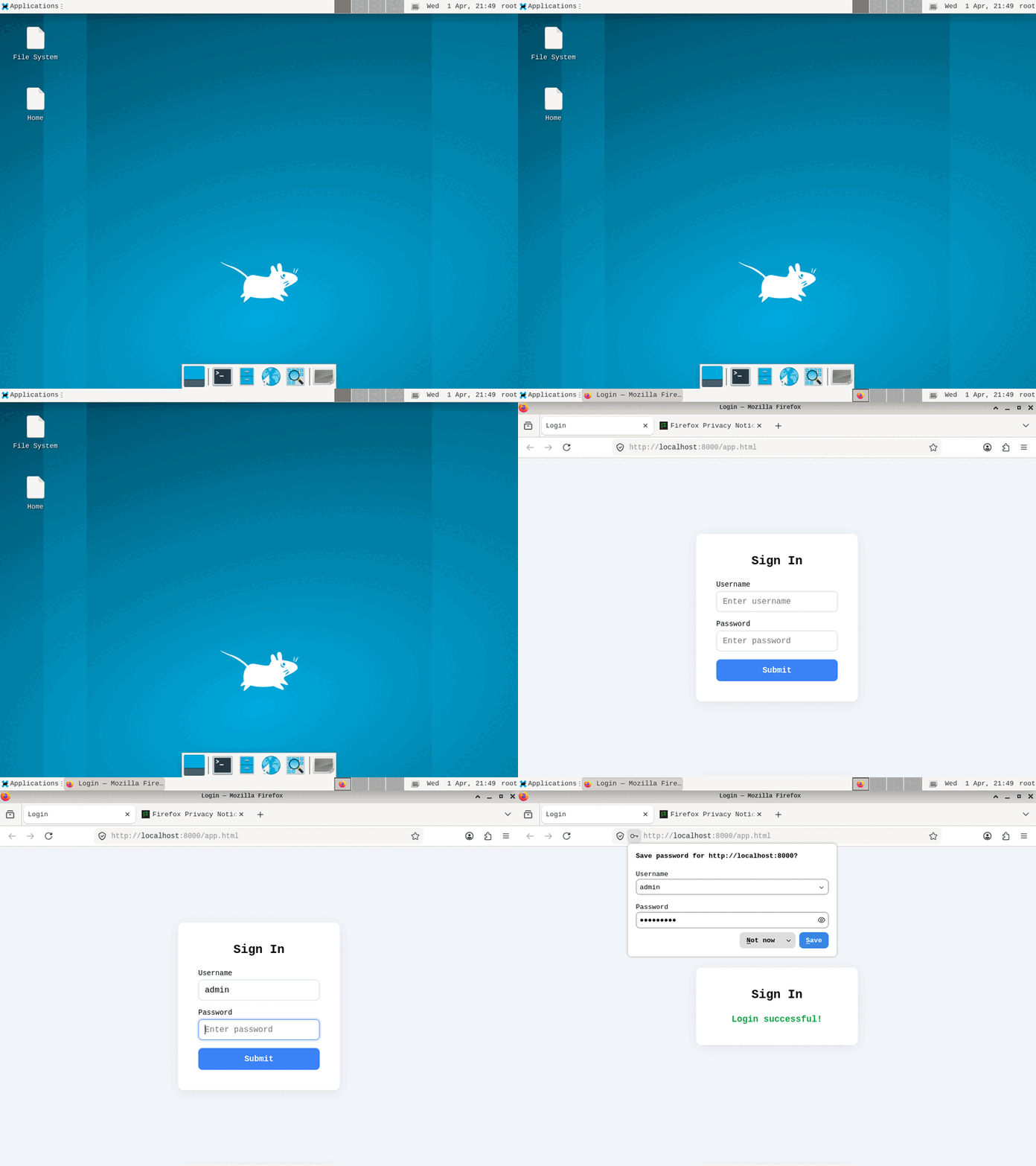
SDK reference
Methods on sandbox.desktop.
| Method | What it does |
|---|---|
screenshot() | Capture the desktop as PNG |
leftClick(x, y) | Click at coordinates |
rightClick(x, y) | Right-click at coordinates |
doubleClick(x, y) | Double-click at coordinates |
type(text) | Type text character by character |
press(key) | Press a key or combo (e.g. "ctrl+c") |
moveMouse(x, y) | Move cursor to coordinates |
scroll(dir, amount) | Scroll up/down/left/right |
drag(x1, y1, x2, y2) | Drag from one point to another |
getScreen() | Get resolution and cursor position |
getStreamInfo() | Get noVNC connection details |
Live desktop streaming
noVNC on port 6080. Every desktop sandbox runs noVNC on port 6080. Create a preview URL with
sandbox.expose(6080) to get a shareable link for live desktop viewing in any browser, no VNC client needed.